Call manager functionality in a Group Call
The Call Manager enables the host in a group call to effectively manage call participants
Hosts of Group Call consultations and sessions have access to the Call Manager which gives various options for managing the call, such as putting a participant temporarily on hold within the call, pinning one or more participants, muting selected participants and transferring a participant to another room. See below for more information.
Hosts in a Video Call have access to the Call Manager at the bottom right of the call screen (top image).

Clicking on the Call Manager button in the Call Screen gives various options for managing the call.
The Call Manager shows:
- Call Duration
- Any participants waiting to be accepted into the call
- Current Participants - with multiple control options available
- Call Actions
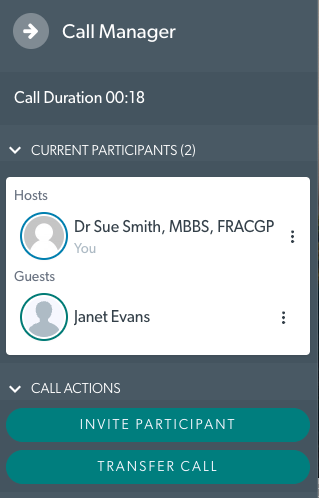
Three dots next to each participant opens a drop down menu that contains more actions:
- Place On-Hold - places a caller temporarily on hold from within the call. Read more here.
- Disconnect - this will end the call for the selected participant/s and the call will continue for others.
- Pin - pin selected participants to focus on them (they will appear larger than other participants in the call screen).
- Mute - mute the selected participant in your current call. You can do this for multiple participants. Once muted, they must unmute themselves when appropriate, as unmuting cannot be controlled by the host of the call.
-
Permissions - Allows a host in the call to assign permissions to individual participants in a Video Call. This currently allows hosts to select the access level for Apps & Tools for individual guests in the call. The options are Hide Apps Drawer and Enable Apps View-Only Mode.
Please note: The Select multiple checkbox above the list of participants allows the host to select multiple participants and apply an action to them, for example muting all or selected participants in the call.

Transfer options
The transfer button under Call Actions gives two options for transferring the call:
- The waiting room - this takes the participant out of the call and back to the waiting screen for the room. They can be let back in when you are ready. Please note: this does not refer to transferring them to the Clinic Waiting Area.
- Another room - here you can transfer a participant to another room in the clinic that you have access to. The room options are any Meeting Rooms or Group Rooms available in the clinic (and User Rooms if you use these in your clinic).

Transferring to 'The waiting room' (puts the participant on hold in the call).
- This option will put the participant in their own private waiting room within the current call. They cannot see or hear other participants in the call, so you can have a private discussion with other participants, if required.
- They will appear under Waiting or On-Hold in the Call Manager. You can then Accept them back into the call when ready. Please note, you will hear an alert sound indicating that someone is waiting to be let into the call - this sound can be muted by clicking on 'Busy? Mute this caller until you're ready'.

Transferring to 'Another room'
- This option allows you to transfer the participant to another room in the clinic.
- You will see a dropdown menu showing the rooms available to you in the clinic, including Meeting rooms and Group rooms.
- Select the room you would like to transfer the participant to.
- Then click on Confirm Transfer

Please note: you cannot transfer a participant in the call to the Waiting Area.

The participant will then be transferred to the selected room and will wait to be accepted into a call in that room.
