Your account profile and settings
Access your account profile and edit as required, including changing your password
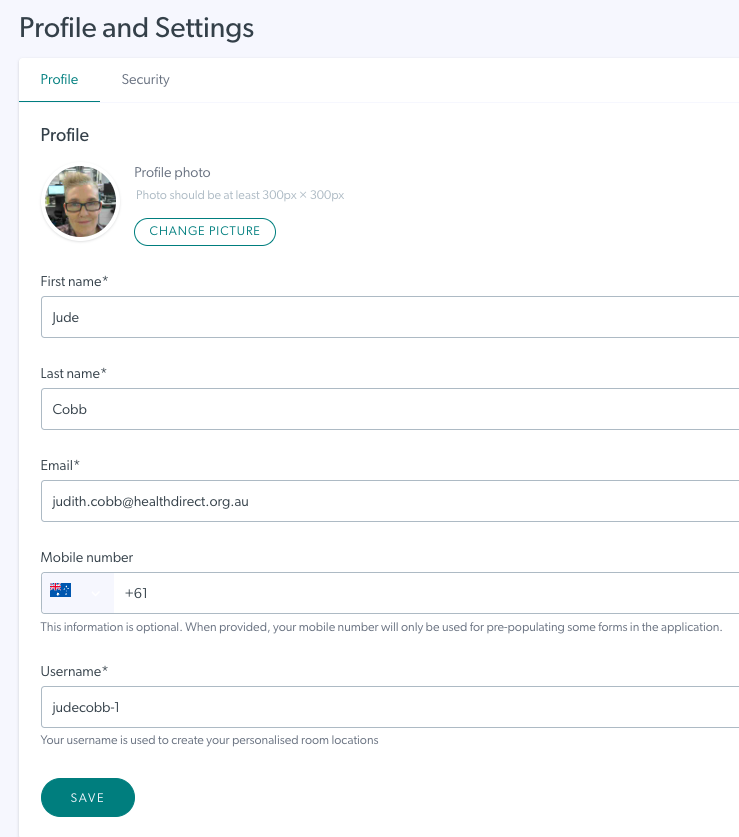
If required, you can edit the profile settings for your account. Edit your platform profile name, picture, email address and phone number (phone number is optional). You can also change your password, if desired, in the Security tab..
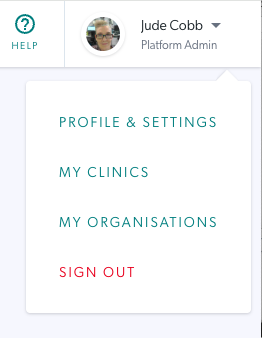
In this section you can:
- Add or change your profile picture - you will need a picture ready to go so you can navigate to it and upload.
- Edit your name and email address if required
- Add a mobile number, if desired (this is optional).
- Add or change your username - this appears in your room URL as a personalised web address when you send invitations to your User Room (if applicable in your clinic workflow).
- Add a Display name (this will show in the Video Call screen and in any invitations you send to the Waiting Area).
Please note: This setting is at the clinic level so you will need to add a Display Name for other clinics you are a member of, if desired.

-
Change your password
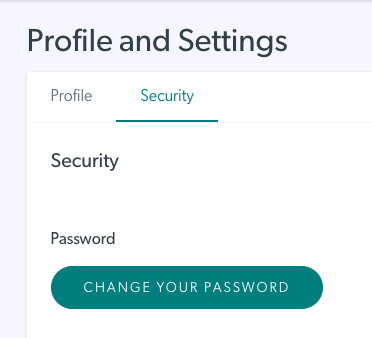
- Click on the Security tab
-
Click on Change your password
Please note: If your organisation uses Singe Sign-on (SSO) you do not need to set a separate Video Call password. If you do create one, it can be used as a back-up in the event of an SSO outage.
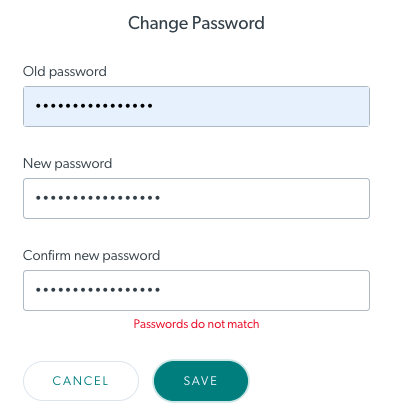
- Type in your old password and then a new password. Confirm the new password and then click on Save.
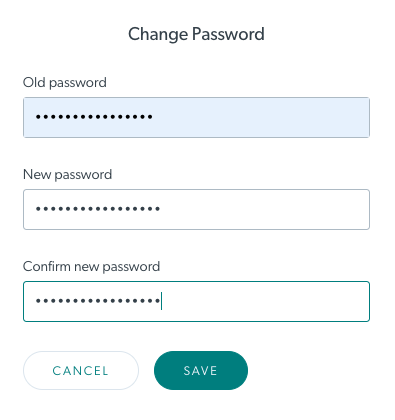
Please note: if you change your password and the passwords don't match, when you click Save, you will see a warning message, as shown in this example. Please confirm again and ensure the New and Confirmed passwords match.