RO Romanian
CK kurdish
MS Malaysian
TH Thai
HU Hungarian
RU Russian
SR Serbian
SW Swahili
CA Catalan
DA Danish
AF Dari
SE Swedish
IL Hebrew
MO Mongolian
UA Ukrainian
PL Polish
FI Finnish
TH Thai (Thailand)
SK Slovak
BE Belarusian
KR Korean
CN Chinese
LT Lithuanian
MY Myanmar (Burmese)
GE Georgian
IN Hindi
ET Estonian
SR Serbian Latin
KM Cambodia (Khmer)
SA Arabic
YU Cantonese
SO Somali
LV Latvian
FR French
ES Spanish
BS Bosnian
BR Portuguese (Brazil)
VI Vietnamese
NL Dutch
BE Dutch (Belgium)
SW Finnish Swedish
IT Italian
ID Indonesian
AM Amharic
UZ Uzbek
GR Greek
CS Czech
HK Chinese (HK)
BG Bulgarian
N Traditional Chinese
PT Portuguese
CM Mandarin
TR Turkish
AZ Azerbaijani
IS Icelandic
JP Japanese
DE German
US English (US)
NO Norwegian
HR Croatian
UR Pakistan (Urdu)
LO Laos (Lao)
BN Bangladesh (Bengali)

Contact Us

If you still have questions or prefer to get help directly from an agent, please submit a request.
We'll get back to you as soon as possible.

Please fill out the contact form below and we will reply as soon as possible.

  • Contact Us
English (US)
RO Romanian
CK kurdish
MS Malaysian
TH Thai
HU Hungarian
RU Russian
SR Serbian
SW Swahili
CA Catalan
DA Danish
AF Dari
SE Swedish
IL Hebrew
MO Mongolian
UA Ukrainian
PL Polish
FI Finnish
TH Thai (Thailand)
SK Slovak
BE Belarusian
KR Korean
CN Chinese
LT Lithuanian
MY Myanmar (Burmese)
GE Georgian
IN Hindi
ET Estonian
SR Serbian Latin
KM Cambodia (Khmer)
SA Arabic
YU Cantonese
SO Somali
LV Latvian
FR French
ES Spanish
BS Bosnian
BR Portuguese (Brazil)
VI Vietnamese
NL Dutch
BE Dutch (Belgium)
SW Finnish Swedish
IT Italian
ID Indonesian
AM Amharic
UZ Uzbek
GR Greek
CS Czech
HK Chinese (HK)
BG Bulgarian
N Traditional Chinese
PT Portuguese
CM Mandarin
TR Turkish
AZ Azerbaijani
IS Icelandic
JP Japanese
DE German
US English (US)
NO Norwegian
HR Croatian
UR Pakistan (Urdu)
LO Laos (Lao)
BN Bangladesh (Bengali)
  • Home

Contact Us

If you still have questions or prefer to get help directly from an agent, please submit a request.
We’ll get back to you as soon as possible.

Please fill out the contact form below and we will reply as soon as possible.

  • Latest information
    Coming Soon Bulletins Live Updates Video Call Priorities
  • Getting started and training
    Need an account Training What do I need? Pre-call test Steps for getting started
  • Using Video Call
    Administration Conduct a consultation Waiting area Clinic dashboard Apps & Tools Remote physiological monitoring Guides and Videos Workflows For Patients
  • Technical requirements and trouble shooting
    Technical basics Troubleshooting your call Troubleshooting pre-call test For IT Compatible devices Need Help?
  • Specialty portals
    Primary Health Care Portal Aged Care Portal
  • About Video Call
    About Articles and case studies Access Policies
+ More

Clinic Waiting Area configuration - Automated messages

Add and edit automated messages for waiting and on-hold callers


Organisation and clinic administrators can add and edit automated messages for waiting and on-hold callers and set timings for when the messages are sent. These messages can contain clinic information, for example, and also be configured to reassure patients who may have longer wait times.


Administrators can create automated messages for waiting and on-hold callers, with both being separately configurable. This means you can configure automated messages for waiting callers and a different set of automated messages for on-hold callers.
To add an automated message for callers with Waiting status, click on Add Message under When call status is "waiting" and then click on the msg you have just created. Add the text and the delay time in seconds (eg if 300 seconds your msg will appear for the caller when they have been waiting for 5 minutes). 
For example, this could include information regarding the clinic or a message saying 'your doctor will be with you shortly'.

Add, edit and delete messages to suit your clinic needs and remember to click Save after you make any changes.
To add a message for callers with On Hold status, click on Add Message under When call status is "on-hold" and then click on the msg you have just created. Add the text and the delay time in seconds (eg if 300 seconds your msg will appear for the caller when they have been waiting for 5 minutes).

Add, edit and delete messages to suit your clinic needs and remember to click Save when you make any changes.
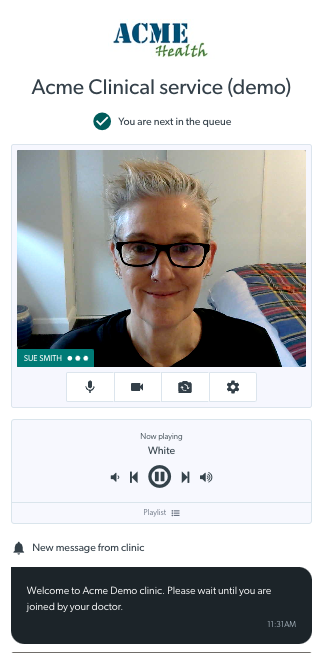
This example shows a waiting patient with an automated message displaying on their screen.

Go to Waiting Area Configuration page

Was this article helpful?

Yes
No
Give feedback about this article

Related Articles

  • Configure the clinic waiting area
  • Clinic Waiting Area configuration - Share Waiting Area
  • Clinic waiting area - General configuration
  • Clinic Waiting Area configuration - Waiting Area Hours

Can't find what you're looking for?

Email support

or speak to the Video Call team on 1800 580 771


Knowledge Base Software powered by Helpjuice

Expand