Clinic waiting area configuration - Supporting information
Configure supporting information for callers to the clinic, including a support message and policies
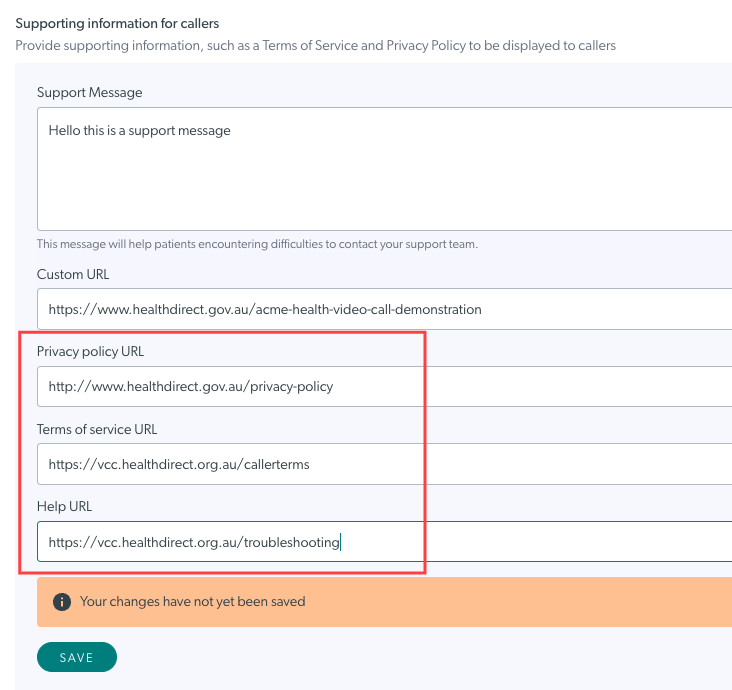
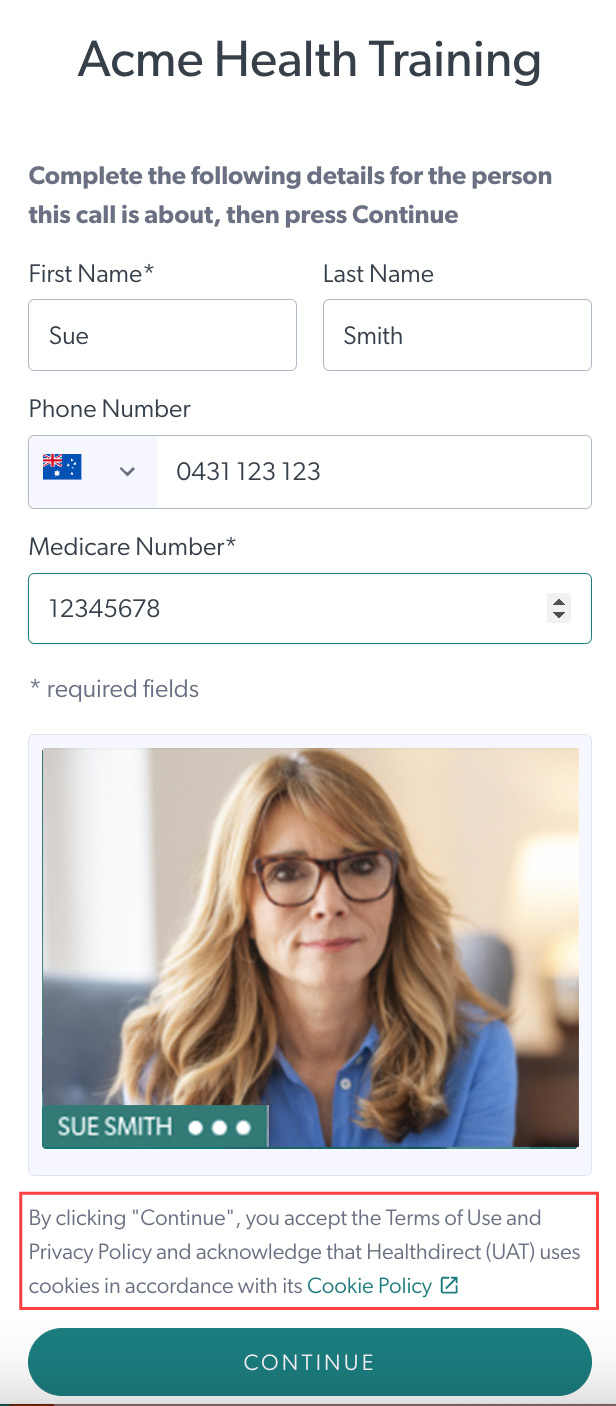
Organisation and clinic administrators can click on Supporting information for callers to add and edit supporting information for the clinic's patients, clients and other callers. These include a support message, privacy and other policies and a custom URL. If you don't add any of your own policies in this section, the Healthdirect policies will be presented by default. To access the clinic waiting area configuration section, clinic and organisation administrators go to the Clinic LHS menu, Configure > Waiting Area.
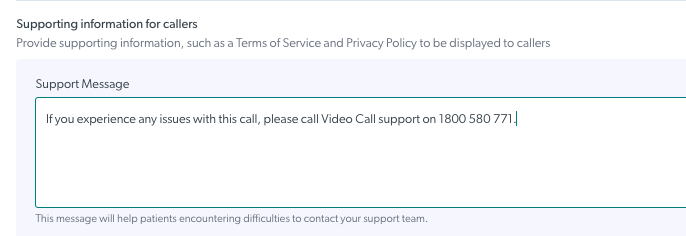
Under Supporting information for callers, add a Support message.
Your callers can use this information to access support, if required. This message will only show if the call has issues and does not load properly.
Remember to click Save if you add or update the support message.
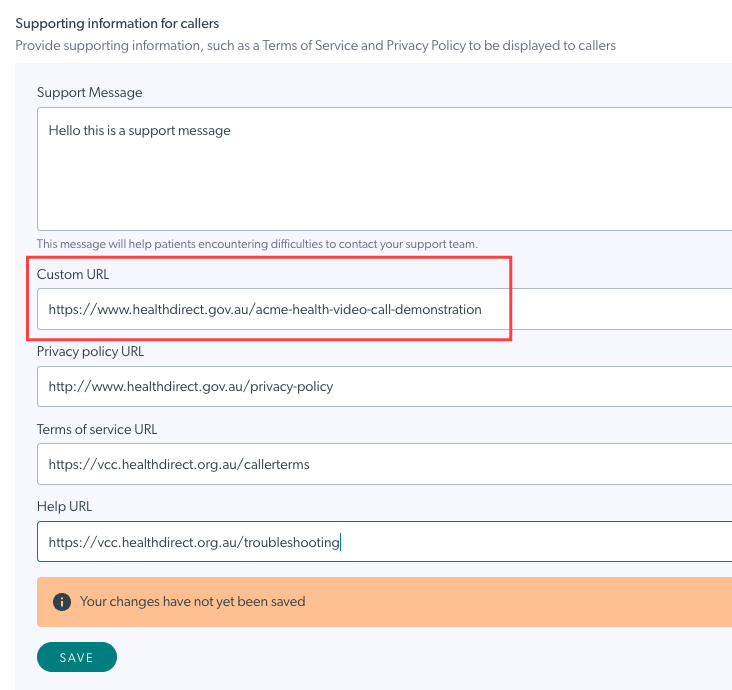
Add a Custom URL.
When configured, a Custom URL will take your callers to a designated page on your website where they can start a Video Call and arrive in the waiting area for their appointment. It will be the link you send to patients and other callers and will show under ‘Share the link to your waiting area’ (if a Custom URL is configured it replaces the normal Waiting Area URL for patients).
The Custom URL can be any website page you choose and it will need to have an access point for callers to start their call and arrive in the waiting area.
Click here for more information regarding Custom URLs.
Add Privacy policy, Terms of service and a Help link, if required. If you do not add these, they will default to healthdirect Video Call links. Click Save to apply any changes.