Clinic waiting area - General configuration
Configuring the General configuration section for your clinic waiting area
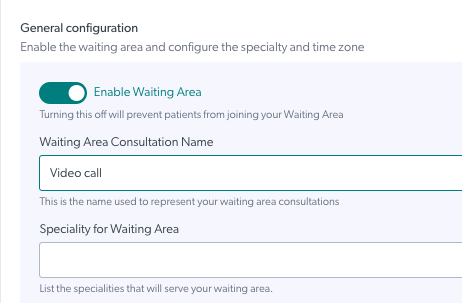
There are various options for configuring the clinic waiting area under General Configuration, which are outlined below. To access the clinic waiting area configuration section, clinic and organisation administrators go to the Clinic LHS menu, Configure > Waiting Area.
The waiting area is enabled by default, so callers can access the clinic and be joined by their health service provider. You do not usually need to disable the waiting area, however if you do you can enable by selecting the toggle to On (blue colour) and then clicking on Save.
* Waiting Area Consultation Name and Specialty for Waiting Area are not currently used so you don't need to add anything in these fields.
Enable Confirm Call Entry
If this is enabled using the toggle switch, when a health service provider clicks on Join with a caller in the waiting area a confirmation box will appear, showing who they are about to join. This adds an extra layer of privacy by reducing the chance of calls being joined in error from the waiting area by other team members in the clinic. Please note the default setting for this confirmation is 'off'.
Display Current Queue Position
If enabled using the toggle switch, waiting callers will be informed of their position in the waiting queue. Please note: this works best for on demand clinics rather than clinics using scheduled appointments, as it orders the queue based on the time people arrive in the waiting area.
Please note the default setting for this function is 'off'.
Enable Guest Notification Messages
If enabled using the toggle switch, patients and other callers will be able to send messages to the clinic while they are waiting or on hold in the clinic waiting area. Read more about two way messaging on this page. Please note the default setting for this function is 'disabled'.
Remember to click Save at the bottom of the General configuration section if you make any changes.

Enable Sound Notifications When The Host Joins
This more prominent alert sound for guests is enabled by default and is useful if they are not focusing on their Video Call while they wait, to ensure they are ready when their clinician joins them. Click here to hear the new alert sound.
Enable Custom URL when guests leave the waiting area.
When a patient, client or other guest clicks the Leave the Waiting Area button before they are joined in a call, you can seek more feedback via a Custom URL (link to a survey). The Video Call leaving survey is configured by default in all clinics, however you can create and configure your own exit survey to find out more information about why a caller left prior to being seen. You can then access the survey response data for the clinic.

These are the feedback options the Video Call leaving survey provides for callers who leave the waiting area prior to being seen. This is the link to the default Video Call survey: https://videocall.direct/leavingsurvey

Check the time zone for the clinic is set correctly and change using the dropdown list, if required.
The waiting area for each clinic can be set differently to the Organisation Default Timezone, if desired. This can be useful where an organisation has clinics in more than one state/time zone. Remember to click Save if you make any changes.


If your Waiting Area is disabled by the clinic administrator, you add a message callers will see if they attempt to start a Video Call in your clinic.

You can add a Waiting Area Out Of Hours message to give your patients/clients more information and/or alternative contact details for when the clinic is closed. This is optional and if not configured callers will simply see when the clinic will reopen.
Remember to click Save if you make any changes. You will see a reminder if your changes have not yet been saved.

Patient Queuing Options
There are two options that provide extra functionality for waiting patients. Click on the options below for more information:

Go to Waiting Area Configuration page