Configuring Post Call Links
Post call links include surveys and any other webpage you would like to direct participants to after the call ends
Clinic administrators in each clinic can configure post call links that callers and/or health service providers will be directed after a Video Call consultation has ended. This is often used for feedback surveys regarding their Video Call experience. If you wish to direct participants to a survey at the end of a call, you will need the link to an existing survey you have created for this purpose. All participants can be directed to the same survey, or to separate surveys, specific to their role (eg patient or clinician).
Post Call Links are configured in the Apps section in the LHS menu. You can direct your patients to any web link once the call ends, such as a survey, billing information page or a thank you message (outlined below).
Please note: If no post call link is configured for a clinic, the participants in a call will be directed to the Call Quality Rating feedback screen at the end of the call.
How to configure a Post Call Link
|
Navigate to the clinic you want to configure a post call link for. Go to Apps > Installed Apps > Post Call Links.
Click on the Details button to the right of the Post Call Links app. |
|
|
Click on Configure. You will see the following fields:
Page Title - displays for participants at the end of the call. Page Text - this is the message your callers will see immediately after the call to direct them to the survey. Button Text - this is the text on the button if you decide to use one. Call Type - this sets the type of call that the survey will launch from. Usually, you will want to choose Waiting Area which will send the survey to participants who have been in a call in your waiting area. You can, however, set this to meeting room to get feedback regarding using Video Call for team meetings.
|

|
|
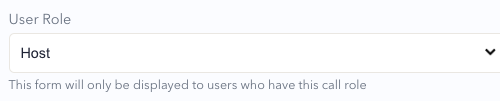
User Role - this sets the type of user that will receive the survey. Choosing Guest will configure the survey to be seen by patients or other callers once their call ends. Choosing Host will send a survey to signed in health service providers. Choosing Everyone will send the same survey to all participants.
Click in the drop-down field to select an option.
|
|
|
URL- copy and paste the URL for the survey you want to use.
An example URL is pasted in this screenshot.
|
 |
|
Behaviour- this configures how the caller will be directed to the survey. Click in the drop-down field to select an option. Embed in call flow: embedded into the call flow so the call window remains open until the survey is completed. Launch from using button: redirected to the survey page with the press of a button. Redirect to URL: redirected to a survey page automatically once the call ends. |
|
|
You can configure multiple surveys for your clinic. This allows you to have different surveys for multiple types of users or call types.
Add form - Click on Add form which takes you through the same process for another User Role or Call Type, as required. |
 
|
| Click the Save button to apply all changes made in the form |  |
|
Use the Remove button to remove any post call links no longer required. |

|




Adding the 'thank you' message for clinicians at the end of a call
You can add any weblink as a post call link, using the same instructions as for adding a survey link shown above. This includes the healthdirect Video Call thank you message for health service providers, thanking them for connecting with their clients via telehealth. Please see below for instructions and the two options available for linking to the message:
|
Navigate to the clinic you want to configure a post call link for. Go to Apps > Installed Apps > Post Call Links.
Click on the Details button to the right of the Post Call Links app.
|

|
| Then click on Add form. | |
|
Once you click Add form you can configure the following fields (please note you can leave the default text for Page title, Page text and Button text as these will not show for the user when following the below instructions): Call Type - set the call type to Waiting Area which will display the thank you screen to participants who have been in a call in the waiting area. User Role - Set this to Host so the screen will show for health service providers who are joining calls. URL- Add the desired URL - we have created two versions of the thank you screen and you can choose from one of these by copying the URL and pasting into the URL field:
Behaviour - Choose Redirect to URL. This will direct health service providers to the thank you screen when the video call is ended. |
 |
|
This is the thank you screen for health service providers, using the image option outlined above: https://videocall.direct/thankyou_img |
 |
How to remove a Post Call Link
|
To remove (delete) a post call URL link, click on the Remove button and then click Save to save and apply the changes.
Please note: Remove clears the form, however, changes will not be applied until the Save button is clicked.
|
|
Survey examples:
See below for two examples of surveys, one for health service providers and the other for patient feedback. If you need any assistance creating questions for a survey please contact us at videocallsupport@healthdirect.org.au.
 |
 |