Turning on Do Not Disturb on your phone
How to stop phone calls disrupting your Video Call on your smart phone
Using your smart phone to participate in a Video Call is easy and convenient. When using your smart phone, however, there is a chance you may be interrupted by an incoming phone call. This can be disruptive and can cause your microphone to stop working in the consultation. If this happens you can restart your microphone in the consultation but it is easier to turn on Do Not Disturb before the consultation. Turning this on stops phone calls coming in on your device, sending them to voicemail instead. Once you finish the consultation remember to turn the Do Not Disturb function off to receive calls normally. Please see instructions below for iPhones and Android phones.
Do Not Disturb on an iPhone
If you receive a phone call while participating in a Video Call using your iPhone, this can stop your microphone working in Video Call. You then need to restart the microphone for it to start working again. To stop this happening, turn on Do Not Disturb in your iPhone settings:
| Go to Settings and click on Focus > Do Not Disturb to access the settings for this option. |  |
|
To turn on Do Not Disturb:
|
|
|
|
|
You will see it turned on in your home screen as well.
Please note: Remember to turn off Do Not Disturb once your Video Call has ended. Simply clinic on it from the home screen and click on it to turn off.
|
|


Do Not Disturb on an Android phone
If you receive a phone call while participating in a Video Call using your Android phone, this can stop your microphone working in the video call. You then need to restart the microphone for it to start working again. To stop this happening you can turn on Do Not Disturb on your phone which will silence any notifications and incoming calls.
This mode can mute sound, stop vibration, and block visual disturbances. You can pick what you block and what you allow:
To turn Do Not Disturb on, swipe down from the top of your screen. Then tap Do Not Disturb 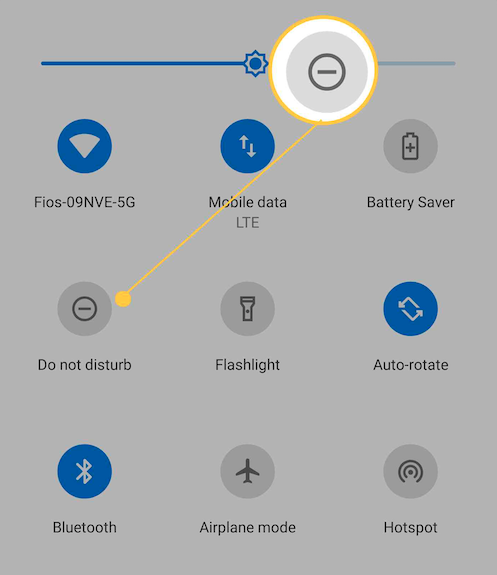
|
 |
|
Change your interruption settings but please note settings can vary by phone:
Please note: Remember to turn off Do Not Disturb once your video call has ended. |
 |
 Do Not Disturb.