Audio quality settings
How to adjust the audio quality settings in a Video Call and select medical audio, if required
Why would you need to change your audio quality settings?
While in a Video Call, you have the option to select from various audio quality settings, depending on your requirements in the call. In most cases the default option will work well and you do not need to adjust anything. There are some specific types of consultations that will sound better with the settings adjusted, such as speech therapy and other consultations with repetitive sounds or sounds that are held for a long period of time. This is because those types of sounds are filtered out with the default settings enabled, so that background and other repetitive sounds do not interfere in the call.
The default audio option has the available advanced settings (noise suppression, echo cancellation and auto gain control) enabled. Depending on the clinical use case, users can select their desired audio behaviour using the toggle switches. The Medical Audio setting will soon be enabled, which will assist with clear audio from medical devices such as digital stethoscopes and other clinical use cases requiring higher quality audio.
Audio quality settings explained
| While in a call, click on Settings to open the Settings drawer. |  |
|
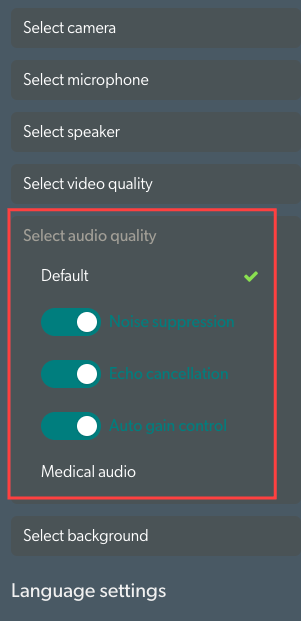
Click on Select audio quality to see the options.
Default will be selected unless you have changed this previously. Noise suppression, Echo cancellation and Auto gain control are enabled by default for this option and you can use the toggle switches to adjust the settings, if required. See below for more information regarding the options. |
 |
|
This information will explain the options in more detail:
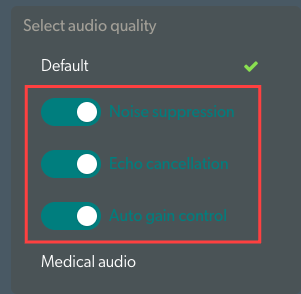
Noise suppression When enabled, this setting removes repetitive sounds from the audio that is sent, to minimise interference from background sounds. You may want to disable this setting for speech therapy and other use cases where repetitive and long-held sounds are required.
Echo cancellation Additional audio processing to ensure the person speaking does not hear themselves feedback into the microphone and hear an echo of their speech. This is useful when participants in the call are not using headsets or earphones.
Auto gain control This setting dynamically adjusts microphone sensitivity, ensuring consistent audio volume regardless of variations in speaking volume or distance from the microphone. Maintains a steady overall volume level. |
 |
|
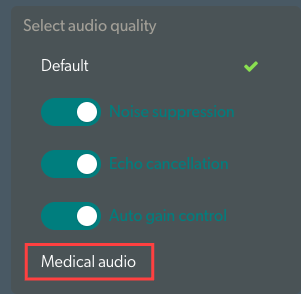
Medical audio This high quality audio setting allows you to send clear audio from medical devices such as digital stethoscopes and other clinical use cases requiring higher quality audio. for an improved call experience. When selecting Medical audio for your medical device, you will also need to change your microphone to the medical device for the correct sound to be sent in the call. |
 |