Video Call App section and configuration
Administrators can view and configure available Apps for the clinic
Video Call Apps add extra functionality during video consultations. Some installed Apps require no configuration and others can be configured by the clinic administrator to suit the needs of the clinic.
Clinic administrators go to Apps > Installed Apps to view the currently installed apps in the clinic and to configure, as required. The Apps with a cog to the right of their name are able to be configured and the others show details only. Some configurable apps need to be enabled to appear in the call screen. All Apps links organisation and clinic administrators to the App Marketplace page in the Resource Centre, where they can access more information and browse the subscription based Apps available for request.
More about the Apps section of the clinic
Below is an example of installed apps in a clinic (please note, the Find More Apps button is not functioning and will soon be removed):

Many Apps are available by default in every Video Call clinic. Please refer to the table below of a description and example of each of the default apps.
| App | Description | Image | |
| Automatic Participant Focus | The default call screen layout with your screen on the right and your patient or client on the left. |  |
|
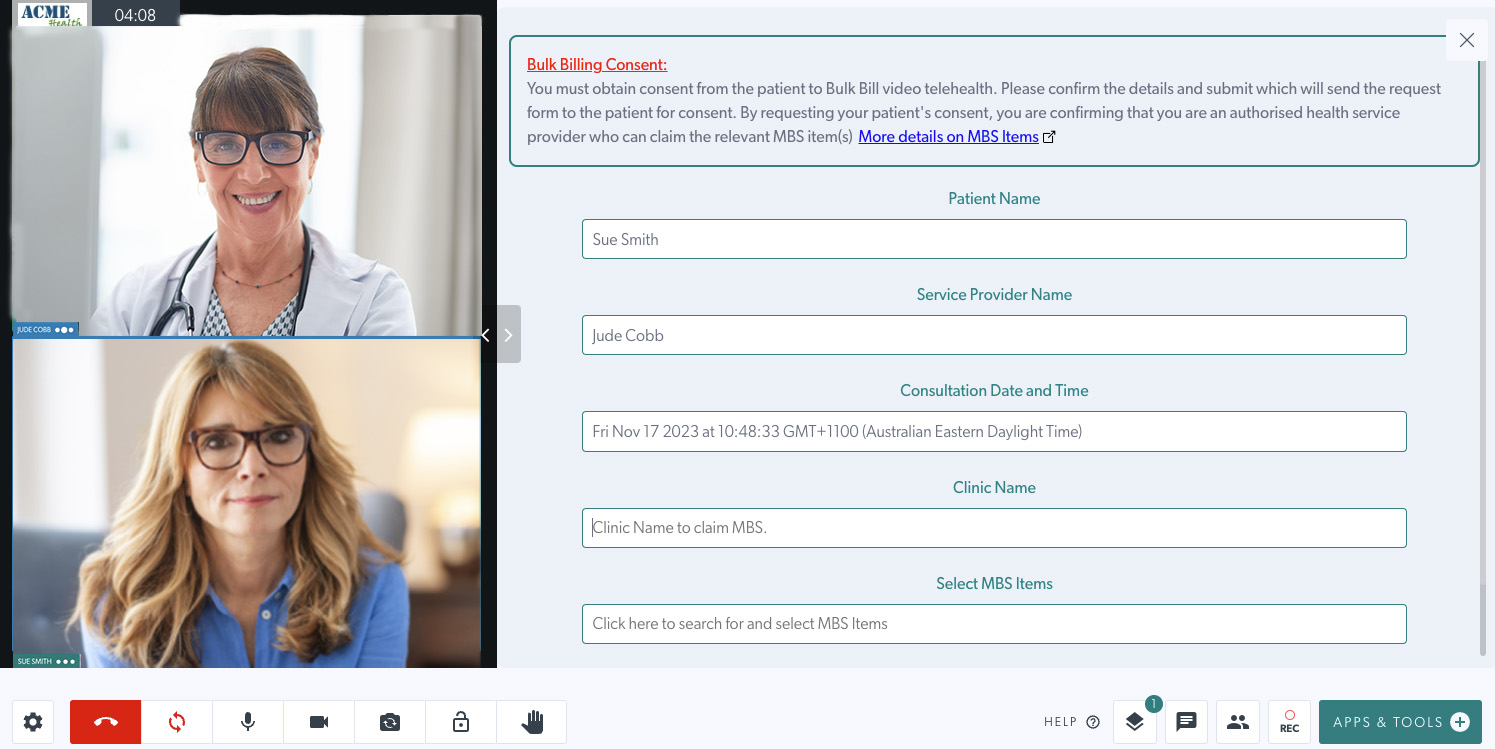
| Bulk Billing Consent |
The Bulk Billing Consent app makes it easy to request and obtain patient consent for Bulk Billing a consultation during a Video Call . Click here for more information |
 |
|
|
Dual Screen 2 or 3 pane options |
Enables participants to share more than one app or tool simultaneously (for example, an x-ray and a whiteboard) using the Grid View options during a call. | 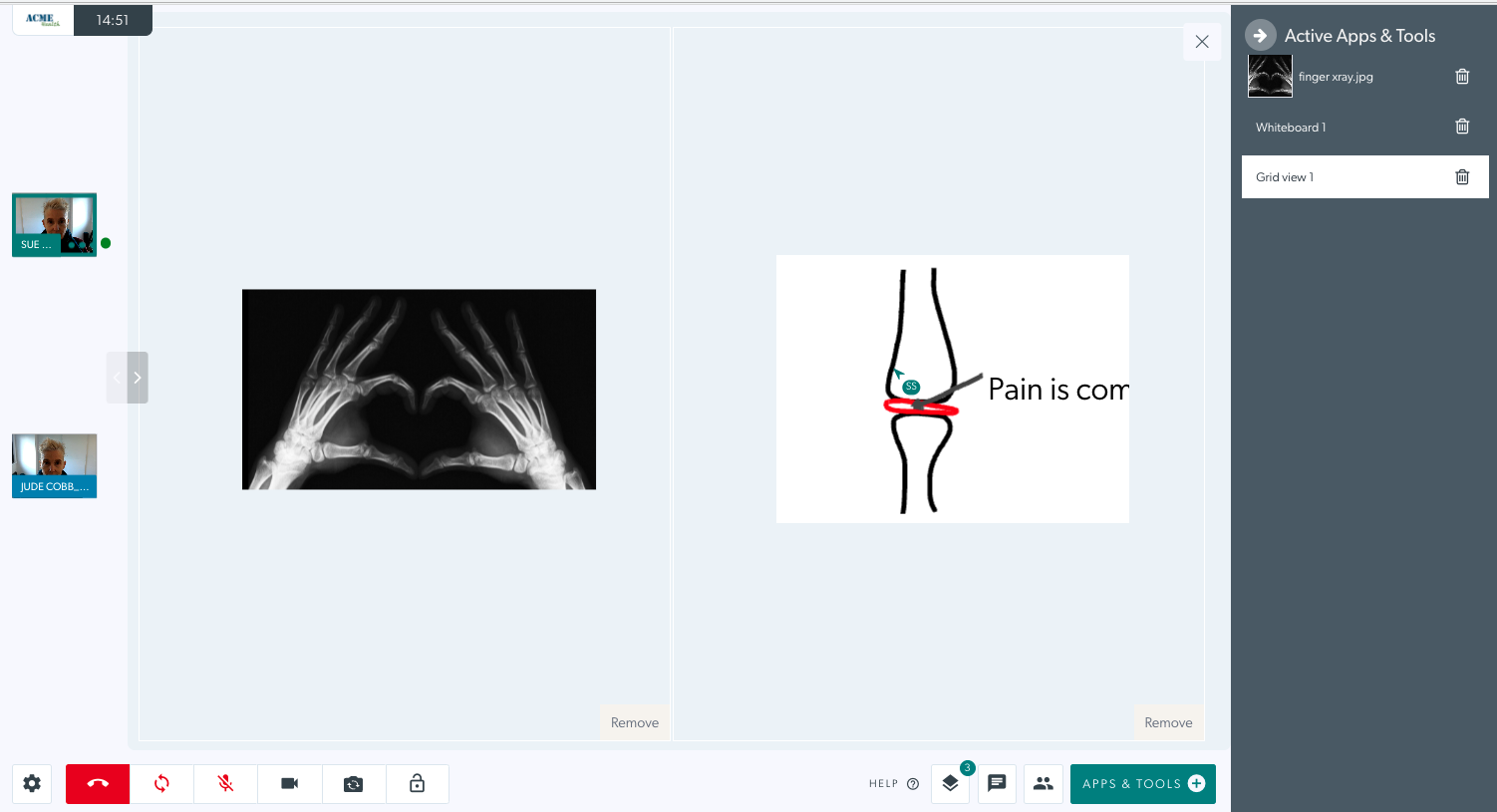 |
|
File Transfer |
File transfer enables clinicians and callers to transfer a file within a call. This appears as the Share a file tool in Apps & Tools. Other participants will see the name of the file being shared and a download button during the call. | 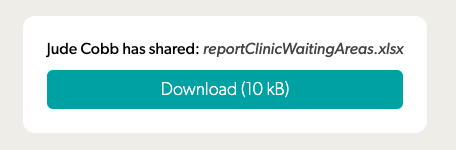 |
|
| Healthdirect Waiting Area Consent | This is where you can configure the important information that is presented to callers prior to entering the Waiting Area. | 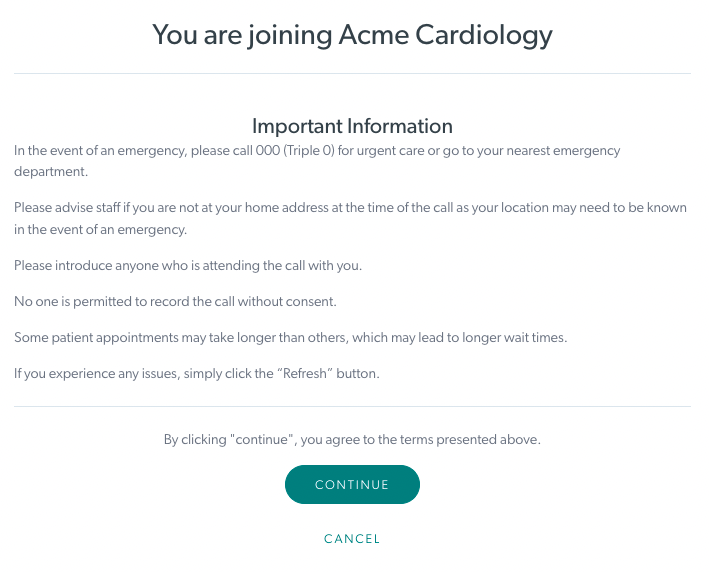 |
|
Highlighters |
Enables highlighter annotation when using Video Call Apps & Tools during a call (e.g. collaborating on a PDF or image file or a screen-share). Click here for more information about the Resource Toolbar. |  |
|
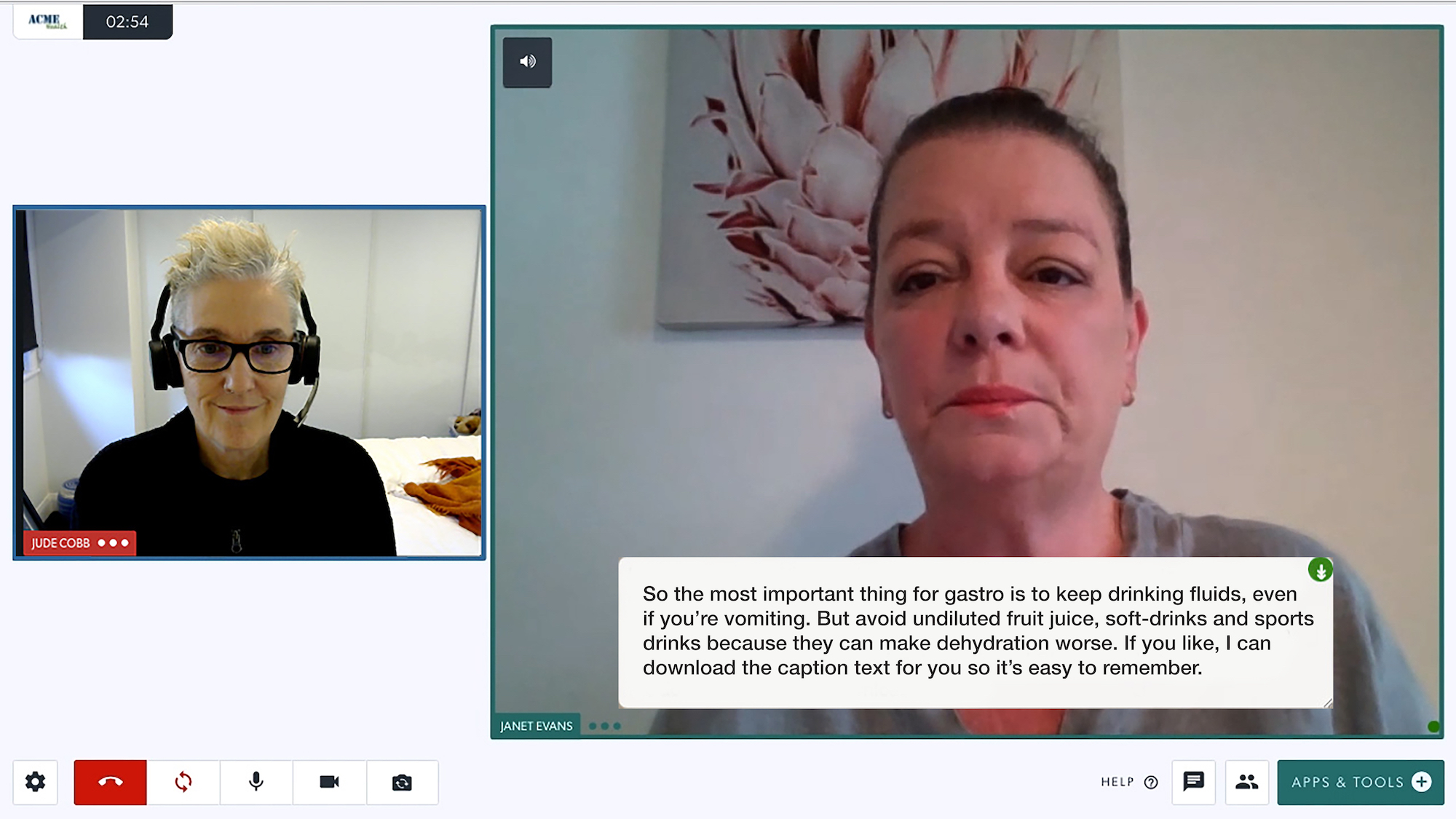
| Live Captions |
Live captioning provides access to spoken dialogue displayed on the screen in real-time. Live captions can be generated in a Video Call with the press of a button. Click here for more information. |
 |
|
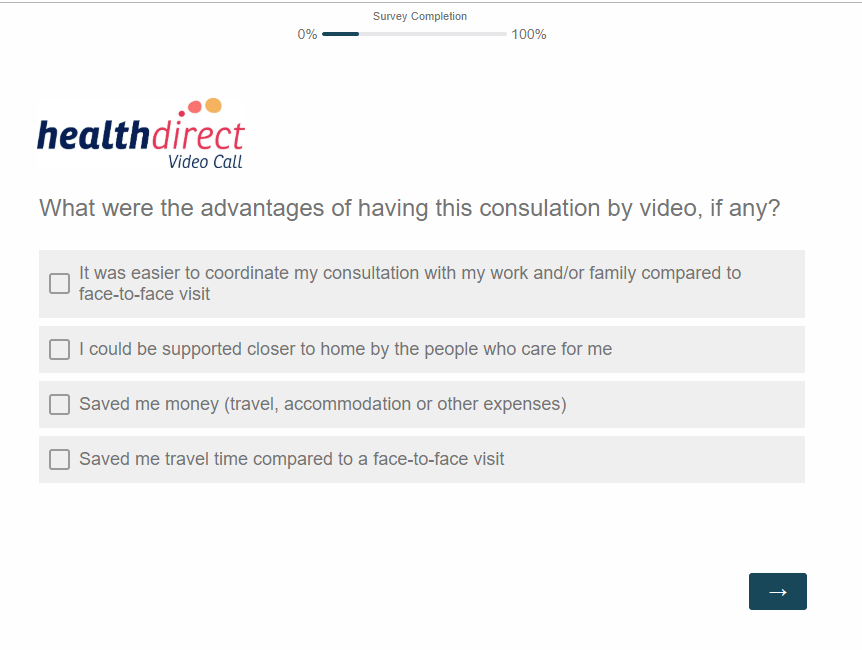
Post Call Links |
Redirects callers to a survey or other web page after the call. Click here for more information. |
 |
|
Request Camera |
This appears in Video Call Apps & Tools and allows participants to request an additional camera from a participant during a consult (for example, a medical scope or a second camera). | 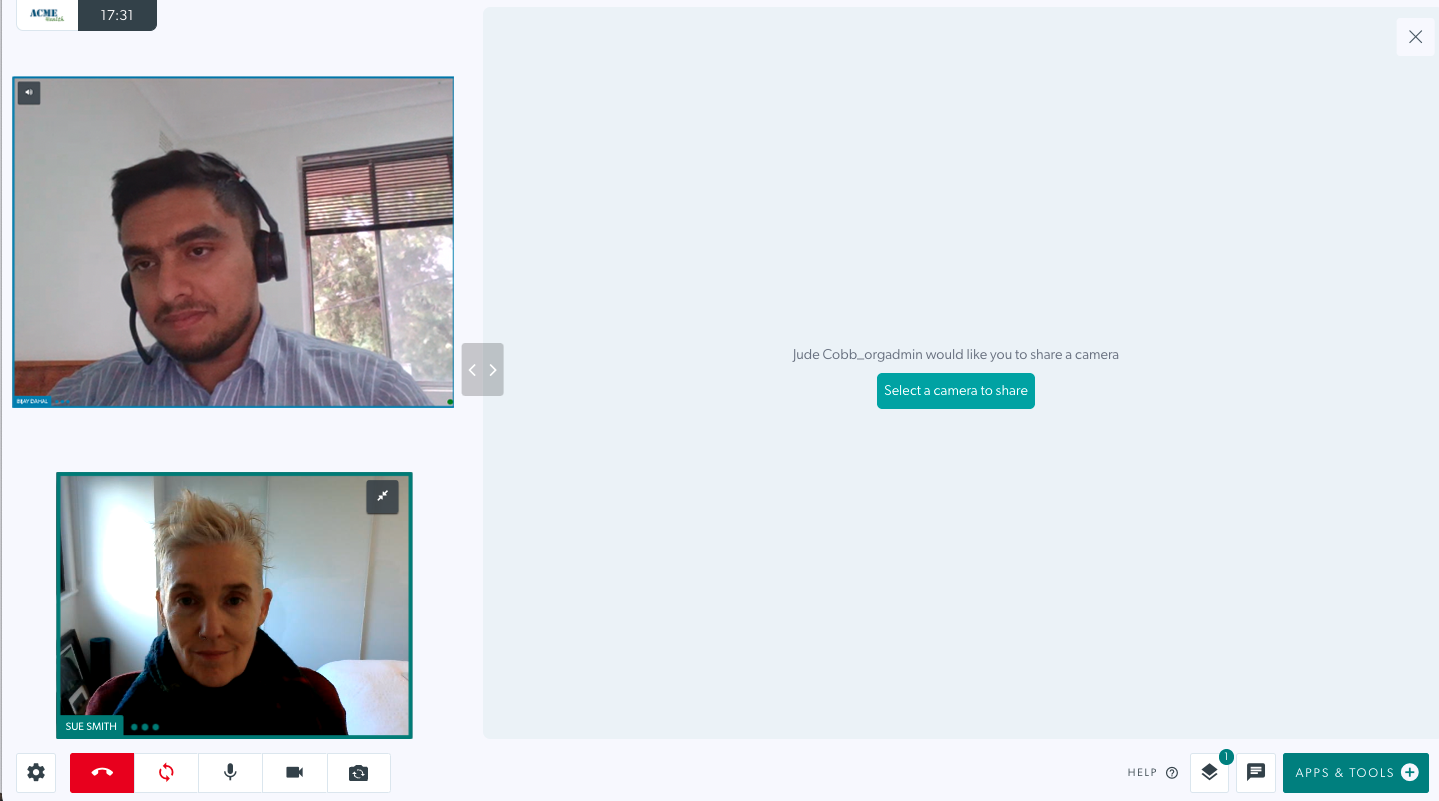 |
|
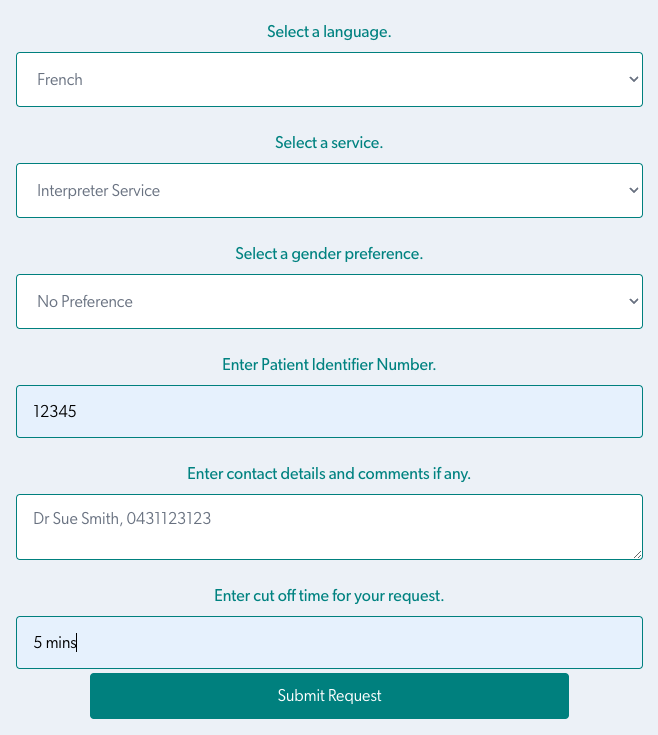
| Services on Demand |
The Services on Demand application allows health service providers to request an on-demand service from the call screen in their current Video Call.
Click here for detailed information. |
 |
|
| Video Player |
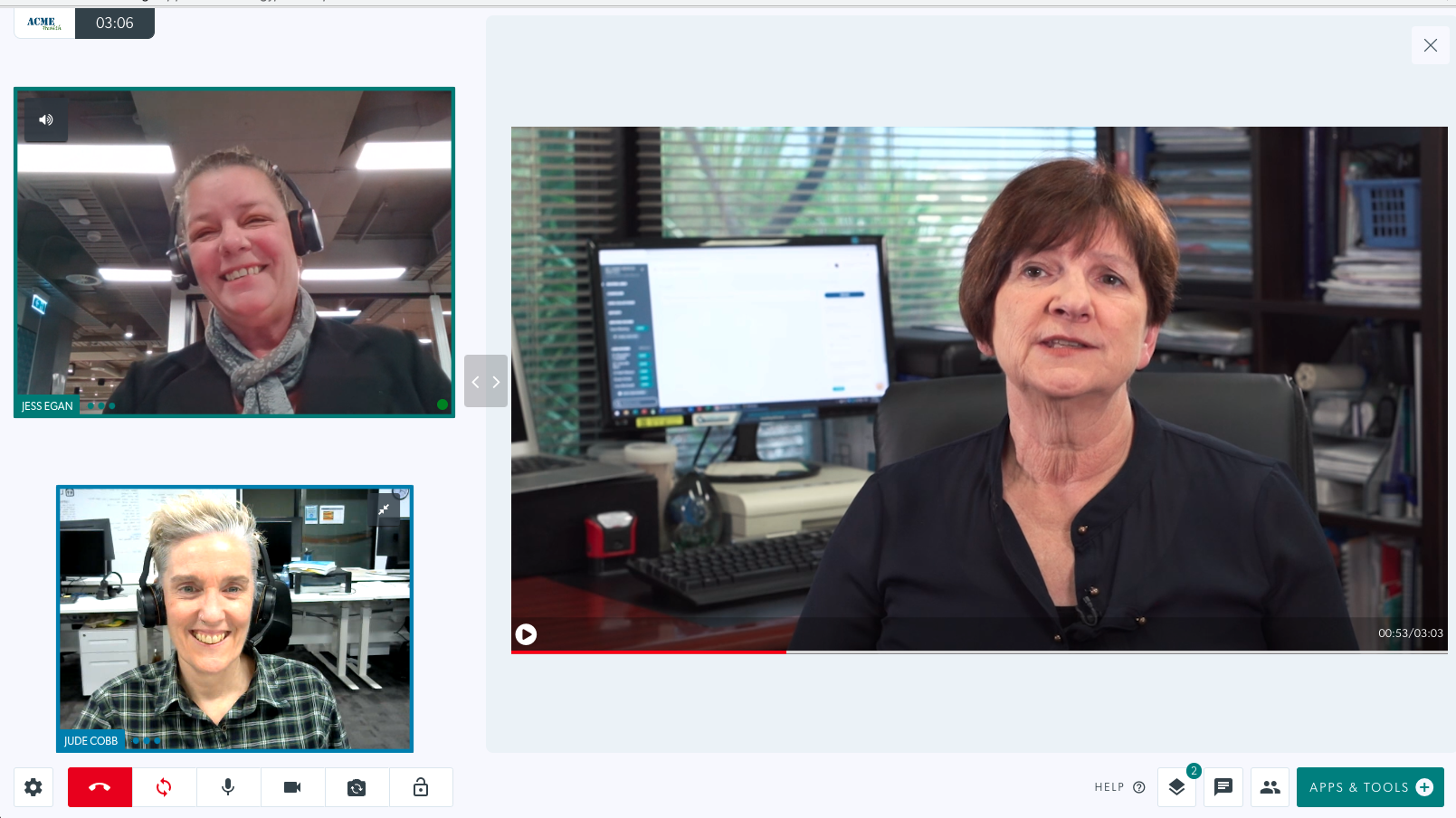
The Video Player app allows you to upload videos from your computer or device into your call, using Add A Video in Apps & Tools. The app synchronises the video for everyone in the call.
Click here for more information. |
|
|
| Virtual Backgrounds |
This app enables users to select a blur or virtual background from the Settings section in the Video Call screen. There are three levels of blur, seven preset virtual backgrounds and a custom background option to choose from.
Click here for detailed information. |
 |
|
YouTube Video Player |
This appears in Video Call Apps & Tools and allows a YouTube link to be embedded into a call without needing to access YouTube via a browser. Once embedded the video can be played and the playhead moved and this will sync the video and sound for all participants in the call. | 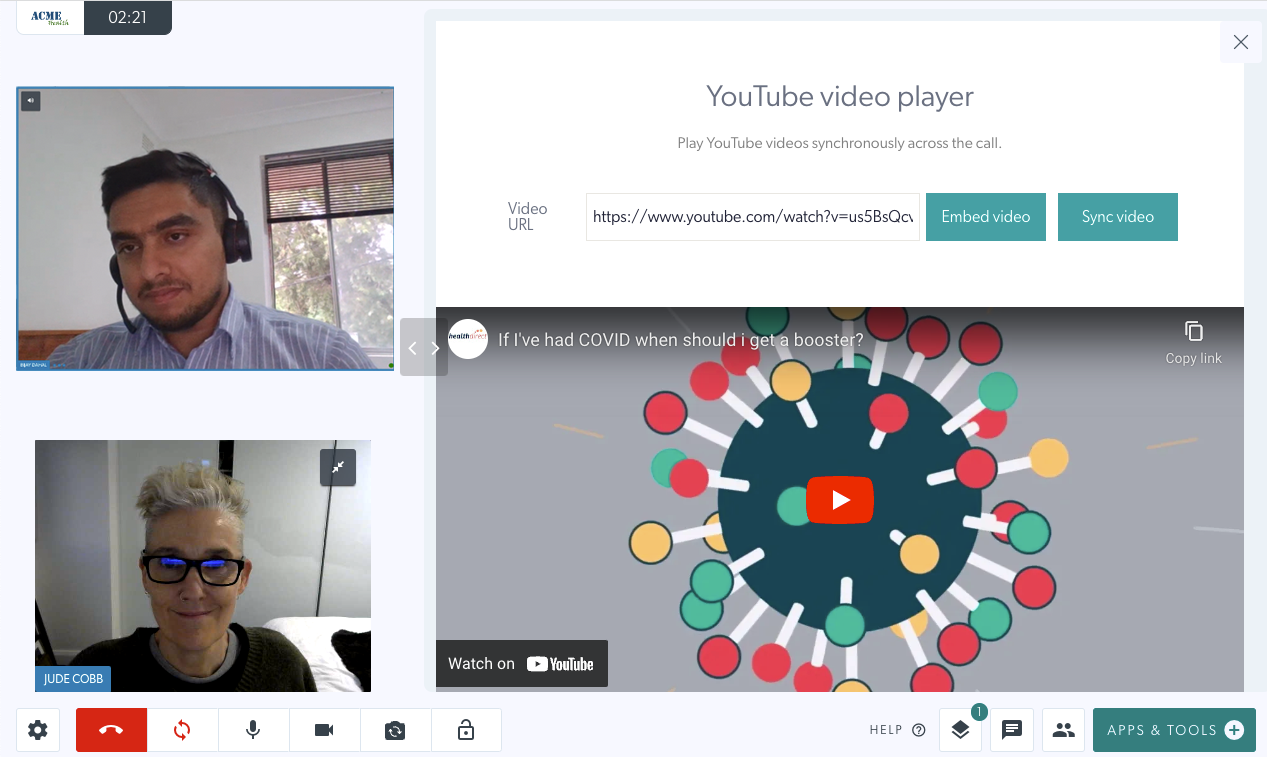 |
Configurable apps
Some apps will have a Settings Cog that you can click to view details about the app and configure it as required. Click on the links below to find out more:
 |
Bulk Billing Consent |
 |
Far End Camera Control |
 |
Healthdirect Waiting Area Consent |
 |
Live Captions |
 |
Patient Consult Summary |
 |
Post Call Links |
 |
Services on Demand |
Free Apps that can be requested for your clinic (but are not part of the default package)
|
Phone Callout Allows the signed in user to call a phone number from inside their current video call and add a participant as audio only. |
 |
|
Add a SIP participant You can add a SIP (Session Initiation Protocol) participant to a Video Call in both the waiting area and meeting rooms. |
 |
|
Devolved local recording Enable local recording of healthdirect Video Call consultations, either video and audio or audio only recordings. |
 |
Uninstalling Apps
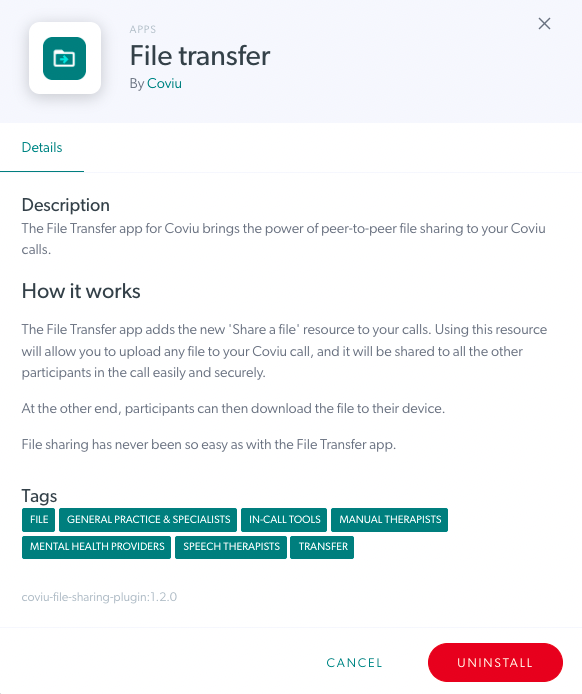
| To Uninstall an App click on the Details button next to it and then click the red Uninstall button at bottom right. You will be prompted to confirm the uninstall or cancel and leave the add-on installed. Please note: once uninstalled it will be deleted from the clinic you cannot simply find an app again and reinstall it. Contact the Video Call team if you need to reinstall. |
 |
To read more about using Tools in a Video Call, visit our Apps & Tools page