Select your required camera for Video Call
How to change to another available camera during a Video Call
If you have more than one camera available for your computer or device, you can select the correct camera quickly and easily during a call, as required. Patient and clients using the clinic link to access the clinic waiting area also have the option to switch their camera prior to the call being joined if an incorrect camera is being used. You could, for example, switch to a back camera to focus on a specific wound or health issue, or you may want to share a medical scope into the call.
There are various ways to select or switch to the correct camera during a call. Please see this Quick Reference Guide and more details below:
Camera Device Picker for desktop and laptop users
The camera device picker for desktop and laptop users allows users to easily select their preferred camera from the list of available connected cameras. Click the arrow next to the video camera button at the bottom left of the call screen and select the desired camera from the list. Device pickers are also available for patients and other guests in the patient join flow screens, when they are using a desktop or laptop.
|
Call screen device picker In the call screen, click on the arrow next to the video camera icon.
The available camera connected to your computer will display and you can select the preferred camera. |
 |
|
Patient join flow device picker For patients and other guests attending their Video Call via a laptop or desktop, the device picker is available to select their preferred camera. |
 |
Switch Camera control button for mobile users
The switch camera button is available in the call screen and in the patient join flow for mobile device users. Use this to switch between your available cameras and select the desired option.
| Selecting the Switch Camera button during your Video Call, highlighted in this image, will cycle through your cameras on a mobile device. This enables you to select the preferred camera. | 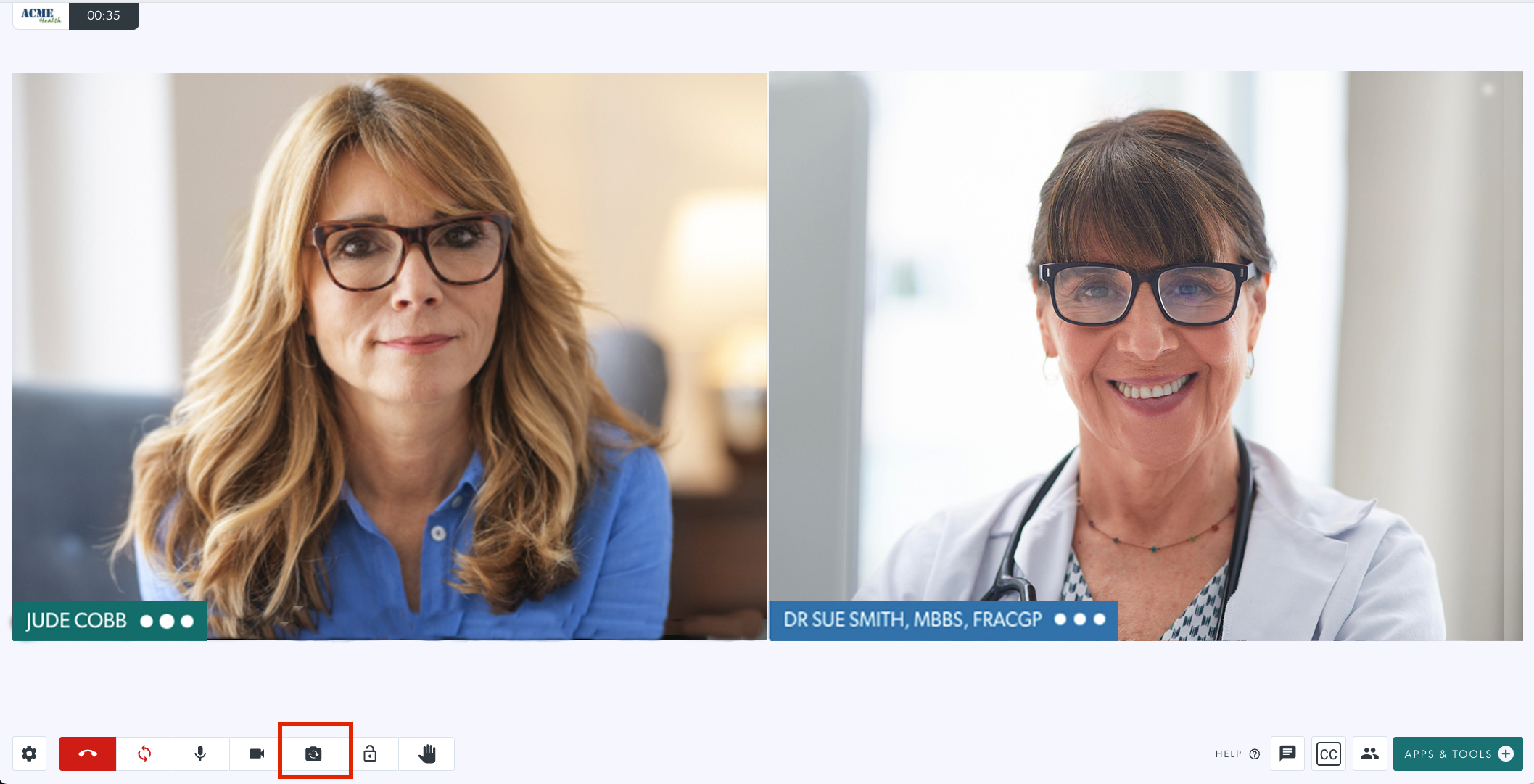 |
| This animation shows switching between two available cameras. |  |
Select your camera in the Settings drawer
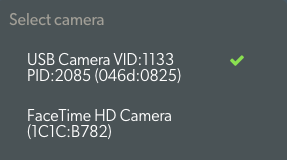
Click on the Settings cog during your call, to open the Settings drawer. You can select your required camera from the available options. Once selected, your camera feed will update to the corresponding camera.
|
Select camera You can select your required camera from the options, if you have more than one available for your computer or device. |
 |
Camera selection in the patient join flow screens
Callers using the clinic link to come into the required waiting area for a consultation have the option to select their required camera, microphone and speaker before they are joined in the call by their health service provider. They do this by clicking on the Settings cog under their video preview and selecting their preferred devices.
|
Under the camera preview callers will see these icons:
|
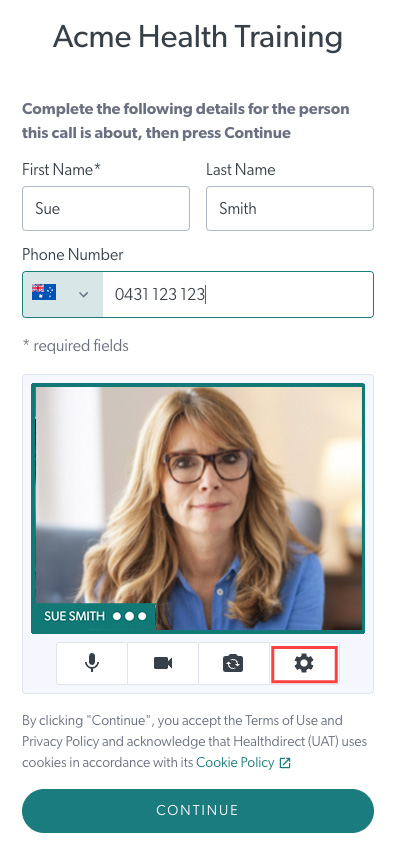 |
Settings cog under camera preview |
 |