ການຕັ້ງຄ່າແອັບໂທວິດີໂອ
ຜູ້ບໍລິຫານອົງການ ແລະຄລີນິກສາມາດເບິ່ງ ແລະກຳນົດຄ່າແອັບທີ່ມີໃຫ້ສຳລັບຄລີນິກໄດ້
ແອັບແມ່ນເຄື່ອງມື ແລະໜ້າທີ່ທີ່ມີຢູ່ໃນແພລດຟອມໂທວິດີໂອທີ່ເພີ່ມຄວາມສາມາດພິເສດໃນລະຫວ່າງການປຶກສາຫາລືວິດີໂອ. ຜູ້ເບິ່ງແຍງລະບົບສາມາດເຂົ້າໄປທີ່ Apps ໃນເມນູຄລີນິກ LHS (ຊ້າຍມື) ເພື່ອເບິ່ງແອັບທີ່ມີໃຫ້ສຳລັບຄລີນິກຂອງເຂົາເຈົ້າ ແລະ ຕັ້ງຄ່າແອັບ, ຖ້າຕ້ອງການ. ບາງແອັບເລີ່ມຕົ້ນບໍ່ຈຳເປັນຕ້ອງມີການຕັ້ງຄ່າ ແລະ ອື່ນໆສາມາດກຳນົດຄ່າໄດ້ໂດຍຜູ້ບໍລິຫານຄລີນິກເພື່ອໃຫ້ເໝາະສົມກັບຄວາມຕ້ອງການຂອງຄລີນິກ.
ມີ ຊຸດ Apps ເລີ່ມຕົ້ນ ທີ່ເຂົ້າມາໂດຍບໍ່ເສຍຄ່າໃນຄລີນິກ Video Call ທັງໝົດ, ອື່ນສາມາດຮ້ອງຂໍໄດ້ ແລະສາມາດເພີ່ມເຂົ້າຄລີນິກຂອງເຈົ້າໄດ້ຟຣີ, ແລະອື່ນໆທີ່ສາມາດຮ້ອງຂໍໄດ້ໃນ Video Call App Marketplace ແລະຕິດຕັ້ງດ້ວຍຄ່າສະໝັກ.
ແອັບທີ່ສາມາດຕັ້ງຄ່າໄດ້
ບາງແອັບຈະມີ Settings Cog ທີ່ທ່ານສາມາດຄລິກເພື່ອເບິ່ງລາຍລະອຽດກ່ຽວກັບແອັບ ແລະ configure app ຕາມຄວາມຕ້ອງການ. ໃຫ້ຄລິກໃສ່ app ທີ່ຕ້ອງການຂ້າງລຸ່ມນີ້ເພື່ອຊອກຫາເພີ່ມເຕີມກ່ຽວກັບການຕັ້ງຄ່າແລະການນໍາໃຊ້ app ໄດ້:
 |
ການຍິນຍອມເຫັນດີໃນການເອີ້ນເກັບເງິນຫຼາຍ |
 |
ການຄວບຄຸມກ້ອງໄກ |
 |
ການຍິນຍອມເຫັນດີບໍລິເວນລໍຖ້າສຸຂະພາບໂດຍກົງ |
 |
ຄຳບັນຍາຍສົດ |
 |
ໂພສລິ້ງໂທ |
 |
ບໍລິການຕາມຄວາມຕ້ອງການ |
ແອັບໂທວິດີໂອເລີ່ມຕົ້ນອະທິບາຍ
ຜູ້ບໍລິຫານຄລີນິກສາມາດເຂົ້າເຖິງແອັບທີ່ມີໃຫ້ສຳລັບຄລີນິກຂອງເຂົາເຈົ້າ. ໄປທີ່ Apps ໃນຖັນ LHS ສໍາລັບຄລີນິກ ແລະທ່ານຈະເຫັນລາຍການ Apps ຂອງທ່ານ. ແອັບທີ່ມີການຕັ້ງຄ່າ cog ແມ່ນສາມາດຕັ້ງຄ່າໄດ້ ແລະບາງອັນຈະຕ້ອງຖືກເປີດໃຊ້ກ່ອນທີ່ຈະມີໃຫ້ນຳໃຊ້ໃນຄລີນິກ. 
ລາຍລະອຽດໂດຍຫຍໍ້ຂອງກິດທີ່ມີຢູ່. ສຳລັບຂໍ້ມູນເພີ່ມເຕີມກ່ຽວກັບແອັບທີ່ສາມາດກຳນົດຄ່າໄດ້, ໃຫ້ເບິ່ງຕື່ມໃນໜ້ານີ້.
| ແອັບ | ລາຍລະອຽດ | ຮູບພາບ | |
| ສຸມໃສ່ຜູ້ເຂົ້າຮ່ວມອັດຕະໂນມັດ | ຮູບແບບຫນ້າຈໍການໂທເລີ່ມຕົ້ນທີ່ມີຫນ້າຈໍຂອງທ່ານຢູ່ເບື້ອງຂວາແລະຄົນເຈັບຫຼືລູກຄ້າຂອງທ່ານຢູ່ເບື້ອງຊ້າຍ. | 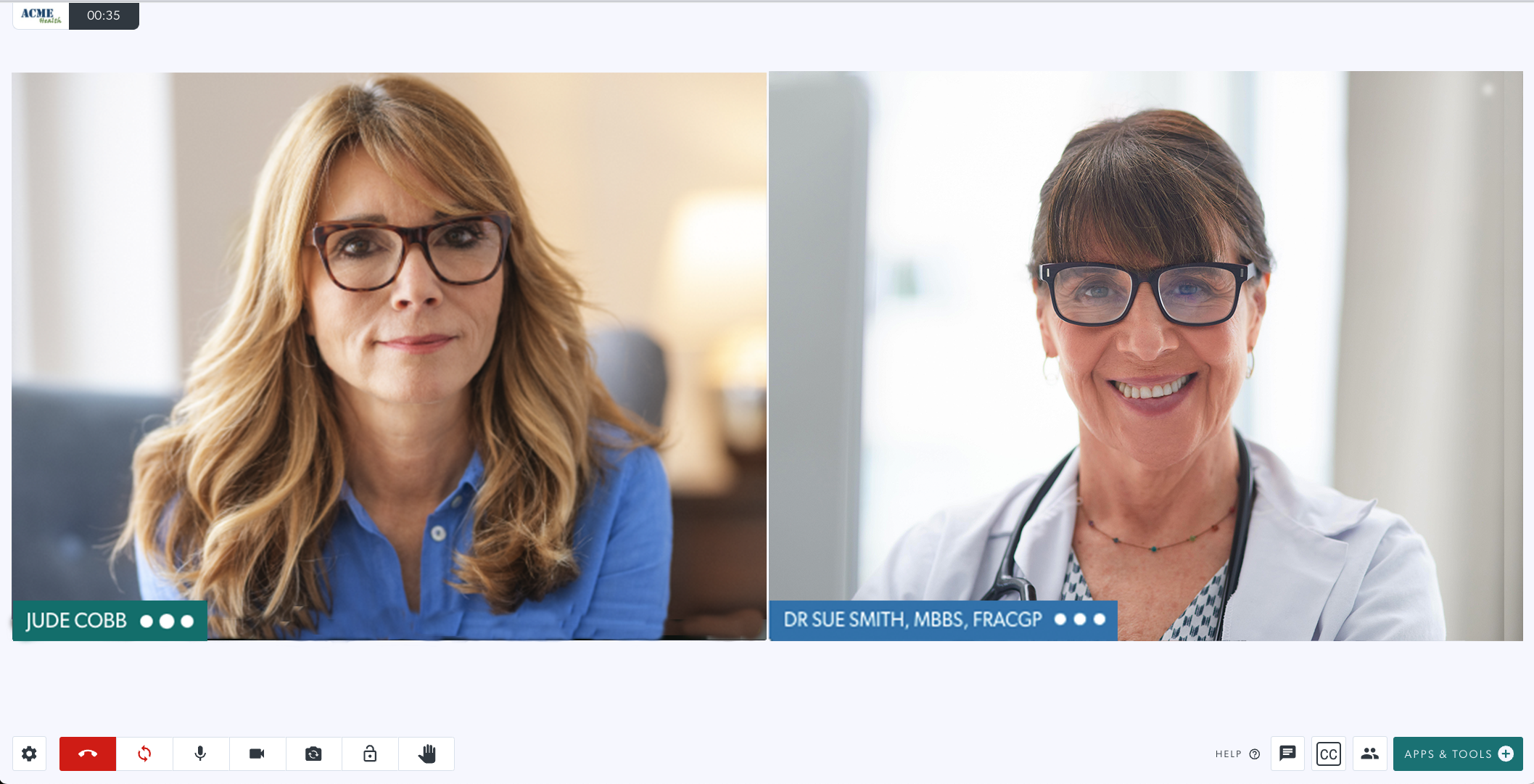 |
|
| ການຍິນຍອມເຫັນດີໃນການເອີ້ນເກັບເງິນຫຼາຍ |
ແອັບ Consent Billing Bulk ເຮັດໃຫ້ມັນງ່າຍໃນການຮ້ອງຂໍ ແລະໄດ້ຮັບການຍິນຍອມຈາກຄົນເຈັບສຳລັບການປຶກສາຫາລືການເອີ້ນເກັບເງິນເປັນຊຸດໃນລະຫວ່າງການໂທວິດີໂອ. ຄລິກ ທີ່ນີ້ ສໍາລັບຂໍ້ມູນເພີ່ມເຕີມ |
 |
|
|
ໜ້າຈໍຄູ່ 2 ຫຼື 3 ທາງເລືອກ pane |
ເຮັດໃຫ້ຜູ້ເຂົ້າຮ່ວມສາມາດແບ່ງປັນຫຼາຍກວ່າໜຶ່ງແອັບ ຫຼື ເຄື່ອງມືພ້ອມກັນ (ຕົວຢ່າງ, x-ray ແລະ whiteboard) ໂດຍໃຊ້ຕົວເລືອກ Grid View ໃນລະຫວ່າງການໂທ. |  |
|
ການໂອນໄຟລ໌ |
ການໂອນໄຟລ໌ເຮັດໃຫ້ແພດ ແລະຜູ້ໂທສາມາດໂອນໄຟລ໌ພາຍໃນການໂທໄດ້. ນີ້ປະກົດວ່າເປັນເຄື່ອງມື ແບ່ງປັນໄຟລ໌ ໃນ Apps & Tools. ຜູ້ເຂົ້າຮ່ວມອື່ນໆຈະເຫັນຊື່ຂອງໄຟລ໌ທີ່ຖືກແບ່ງປັນແລະປຸ່ມດາວໂຫລດໃນລະຫວ່າງການໂທ. |  |
|
| ການຍິນຍອມເຫັນດີບໍລິເວນລໍຖ້າສຸຂະພາບໂດຍກົງ | ນີ້ແມ່ນບ່ອນທີ່ທ່ານສາມາດກໍານົດຂໍ້ມູນທີ່ສໍາຄັນທີ່ນໍາສະເຫນີໃຫ້ກັບຜູ້ໂທກ່ອນທີ່ຈະເຂົ້າໄປໃນເຂດລໍຖ້າ. |  |
|
ຈຸດເດັ່ນ |
ເປີດໃຊ້ການເນັ້ນຄຳບັນຍາຍເມື່ອໃຊ້ ແອັບ ແລະ ເຄື່ອງມືການໂທວິດີໂອ ໃນລະຫວ່າງການໂທ (ເຊັ່ນ: ຮ່ວມມືກັບໄຟລ໌ PDF ຫຼືຮູບພາບ ຫຼືການແບ່ງປັນໜ້າຈໍ). ຄລິກ ທີ່ນີ້ ສໍາລັບຂໍ້ມູນເພີ່ມເຕີມກ່ຽວກັບແຖບເຄື່ອງມືຊັບພະຍາກອນ. |  |
|
| ຄຳບັນຍາຍສົດ |
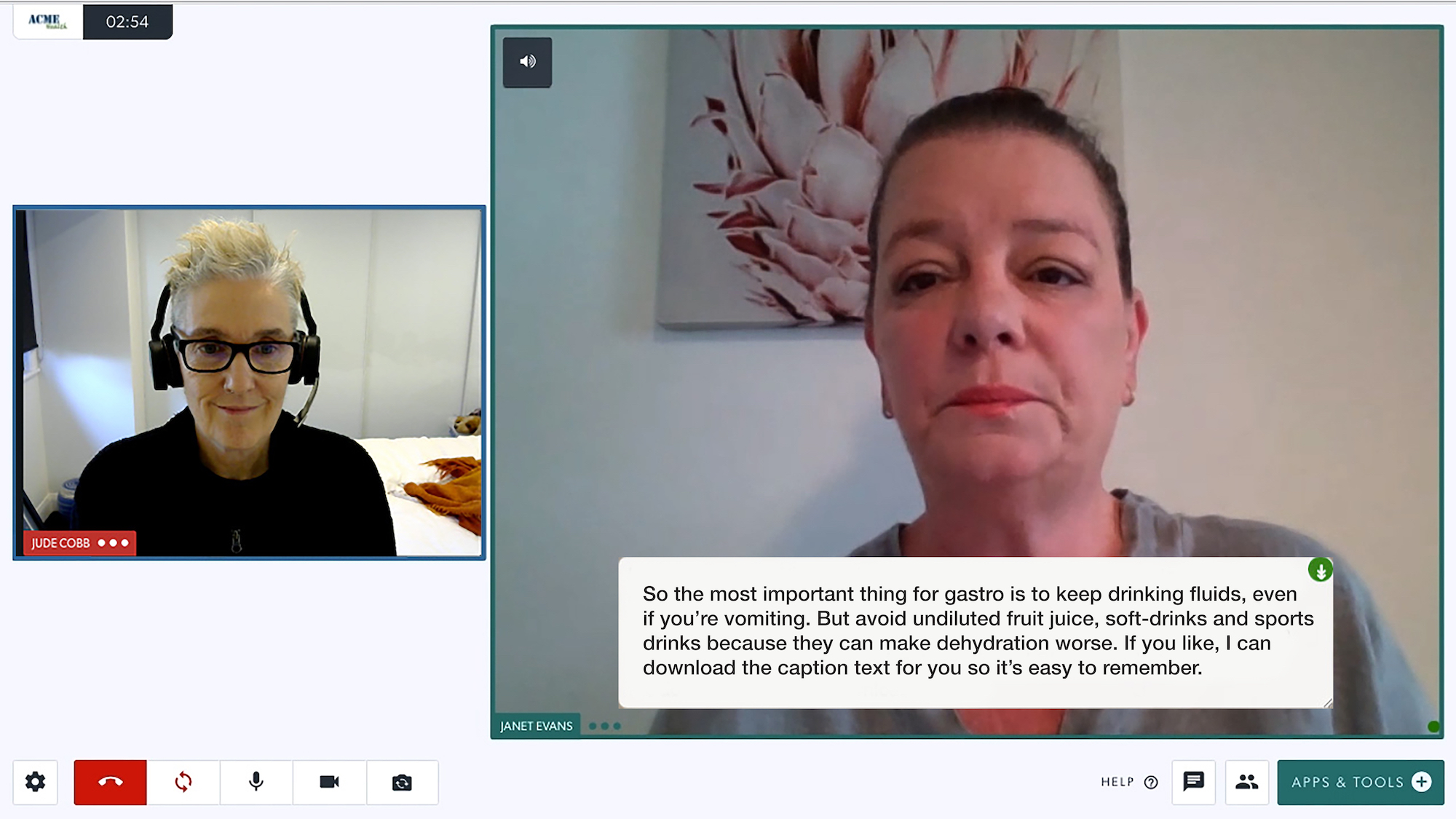
ການບັນຍາຍສົດໃຫ້ການເຂົ້າເຖິງການສົນທະນາແບບເວົ້າທີ່ສະແດງຢູ່ໃນໜ້າຈໍແບບສົດໆ. ສາມາດສ້າງຄຳບັນຍາຍສົດໄດ້ໃນການໂທດ້ວຍວິດີໂອດ້ວຍການກົດປຸ່ມ. ຄລິກ ທີ່ນີ້ ສໍາລັບຂໍ້ມູນເພີ່ມເຕີມ. |
 |
|
ໂພສລິ້ງໂທ |
ປ່ຽນເສັ້ນທາງຜູ້ໂທໄປຫາການສໍາຫຼວດຫຼືຫນ້າເວັບອື່ນໆຫຼັງຈາກການໂທ. ຄລິກ ທີ່ນີ້ ສໍາລັບຂໍ້ມູນເພີ່ມເຕີມ. |
 |
|
ຮ້ອງຂໍກ້ອງຖ່າຍຮູບ |
ອັນນີ້ປະກົດຢູ່ໃນ ແອັບ ແລະ ເຄື່ອງມືການໂທວິດີໂອ ແລະອະນຸຍາດໃຫ້ຜູ້ເຂົ້າຮ່ວມ ຮ້ອງຂໍກ້ອງຖ່າຍຮູບເພີ່ມເຕີມ ຈາກຜູ້ເຂົ້າຮ່ວມໃນລະຫວ່າງການປຶກສາຫາລື (ຕົວຢ່າງ, ຂອບເຂດທາງການແພດ ຫຼືກ້ອງຖ່າຍຮູບທີສອງ). |  |
|
| ບໍລິການຕາມຄວາມຕ້ອງການ |
ແອັບພລິເຄຊັນບໍລິການຕາມຄວາມຕ້ອງການອະນຸຍາດໃຫ້ຜູ້ໃຫ້ບໍລິການດ້ານສຸຂະພາບສາມາດຮ້ອງຂໍການບໍລິການຕາມຄວາມຕ້ອງການຈາກຫນ້າຈໍການໂທໃນການໂທວິດີໂອໃນປະຈຸບັນຂອງພວກເຂົາ. ຄລິກ ທີ່ນີ້ ສໍາລັບຂໍ້ມູນລາຍລະອຽດ. |
 |
|
| ເຄື່ອງຫຼິ້ນວີດີໂອ |
ແອັບຯ Video Player ອະນຸຍາດໃຫ້ທ່ານອັບໂຫລດວິດີໂອຈາກຄອມພິວເຕີ ຫຼືອຸປະກອນຂອງທ່ານເຂົ້າໃນການໂທຂອງທ່ານ, ໂດຍໃຊ້ Add A Video ໃນ Apps & Tools. ແອັບຯ synchronise ວິດີໂອສໍາລັບທຸກຄົນໃນການໂທ. ຄລິກ ທີ່ນີ້ ສໍາລັບຂໍ້ມູນເພີ່ມເຕີມ. |
|
|
| ພື້ນຫຼັງສະເໝືອນ |
ແອັບນີ້ເຮັດໃຫ້ຜູ້ໃຊ້ສາມາດເລືອກພື້ນຫຼັງມົວ ຫຼື ສະເໝືອນຈິງໄດ້ຈາກພາກສ່ວນການຕັ້ງຄ່າໃນໜ້າຈໍການໂທດ້ວຍວິດີໂອ. ມີສາມລະດັບຂອງການມົວ, ເຈັດພື້ນຫລັງ virtual preset ແລະທາງເລືອກພື້ນຫລັງທີ່ກໍາຫນົດເອງທີ່ຈະເລືອກເອົາຈາກ. ຄລິກ ທີ່ນີ້ ສໍາລັບຂໍ້ມູນລາຍລະອຽດ. |
 |
|
ເຄື່ອງຫຼິ້ນວິດີໂອ YouTube |
ອັນນີ້ປະກົດຢູ່ໃນ ແອັບ ແລະ ເຄື່ອງມືການໂທດ້ວຍວິດີໂອ ແລະອະນຸຍາດໃຫ້ມີ ການຝັງລິ້ງ YouTube ເຂົ້າໃນການໂທໂດຍບໍ່ຈໍາເປັນຕ້ອງເຂົ້າເຖິງ YouTube ຜ່ານໂປຣແກຣມທ່ອງເວັບ. ເມື່ອຕິດຕັ້ງວິດີໂອສາມາດຫຼິ້ນແລະ playhead ໄດ້ຍ້າຍແລະນີ້ຈະ sync ວິດີໂອແລະສຽງສໍາລັບຜູ້ເຂົ້າຮ່ວມທັງຫມົດໃນການໂທ. |  |

ແອັບທີ່ສາມາດຮ້ອງຂໍໄດ້ສຳລັບຄລີນິກຂອງເຈົ້າ (ແຕ່ບໍ່ແມ່ນສ່ວນໜຶ່ງຂອງແພັກເກດເລີ່ມຕົ້ນ)
|
ໂທອອກໂທລະສັບ ອະນຸຍາດໃຫ້ຜູ້ໃຊ້ເຂົ້າສູ່ລະບົບໂທຫາເບີໂທລະສັບຈາກພາຍໃນການໂທວິດີໂອໃນປັດຈຸບັນຂອງເຂົາເຈົ້າແລະ ເພີ່ມຜູ້ເຂົ້າຮ່ວມ ເປັນສຽງພຽງແຕ່ຜ່ານໂທລະສັບຂອງເຂົາເຈົ້າ. |
 |
ກຳລັງຖອນການຕິດຕັ້ງແອັບ
| ເພື່ອຖອນການຕິດຕັ້ງແອັບຯໃຫ້ຄລິກທີ່ປຸ່ມລາຍລະອຽດທີ່ຢູ່ຂ້າງມັນ ແລະຈາກນັ້ນຄລິກທີ່ປຸ່ມຖອນການຕິດຕັ້ງສີແດງຢູ່ເບື້ອງຂວາລຸ່ມ. ທ່ານຈະໄດ້ຮັບການເຕືອນໃຫ້ຢືນຢັນການຖອນການຕິດຕັ້ງຫຼືຍົກເລີກແລະປ່ອຍໃຫ້ add-on ຕິດຕັ້ງ. ກະລຸນາບັນທຶກ: ເມື່ອຖອນການຕິດຕັ້ງມັນຈະຖືກລຶບອອກຈາກຄລີນິກທ່ານບໍ່ສາມາດຊອກຫາ app ໄດ້ອີກເທື່ອຫນຶ່ງແລະຕິດຕັ້ງມັນໃຫມ່. ຕິດຕໍ່ທີມງານ Video Call ຖ້າຫາກວ່າທ່ານຕ້ອງການທີ່ຈະຕິດຕັ້ງໃຫມ່. |
 |
| ຊອກຫາແອັບ - ຄຸນສົມບັດນີ້ບໍ່ສາມາດໃຊ້ໄດ້ໃນຂະນະນີ້ ແຕ່ຈະມາໃນອະນາຄົດ. ກະລຸນາລະເລີຍປຸ່ມນີ້. ເມື່ອຄຸນສົມບັດນີ້ຖືກເປີດໃຊ້ແລ້ວ ທ່ານຈະສາມາດຊອກຫາແອັບເພື່ອເພີ່ມໃສ່ຄລີນິກຂອງທ່ານໄດ້ໂດຍການຄລິກທີ່ຊອກຫາແອັບ. |
 |
ກຳລັງຮ້ອງຂໍແອັບ
ກະລຸນາໃຊ້ ແບບຟອມການຮ້ອງຂໍ Apps ຂອງພວກເຮົາເພື່ອຮ້ອງຂໍໃຫ້ມີ Apps ເພີ່ມເຕີມສໍາລັບຄລີນິກຂອງທ່ານ. ຄລິກ ທີ່ນີ້ ສໍາລັບຂໍ້ມູນເພີ່ມເຕີມ.
ເພື່ອອ່ານເພີ່ມເຕີມກ່ຽວກັບການໃຊ້ເຄື່ອງມືໃນການໂທດ້ວຍວິດີໂອ, ໃຫ້ເຂົ້າໄປເບິ່ງໜ້າ Apps & Tools ຂອງພວກເຮົາ